Section tiles and section cards
Last updated: October 10, 2026
Choose the Section tiles or Section cards layout
To learn how to select the Section tiles or Section cards layout, see Configure course homepage layouts.
Set dynamic section opening
In the Section tiles and Section cards layouts, sections can open inline on the course page (default) or in a modal window.
To change how sections open:
- Go to: Theme settings > Courses > Course page.
- Set the "Dynamic section opening" option to "Inline below the course cards or tiles" or "In a modal window".
Set section images
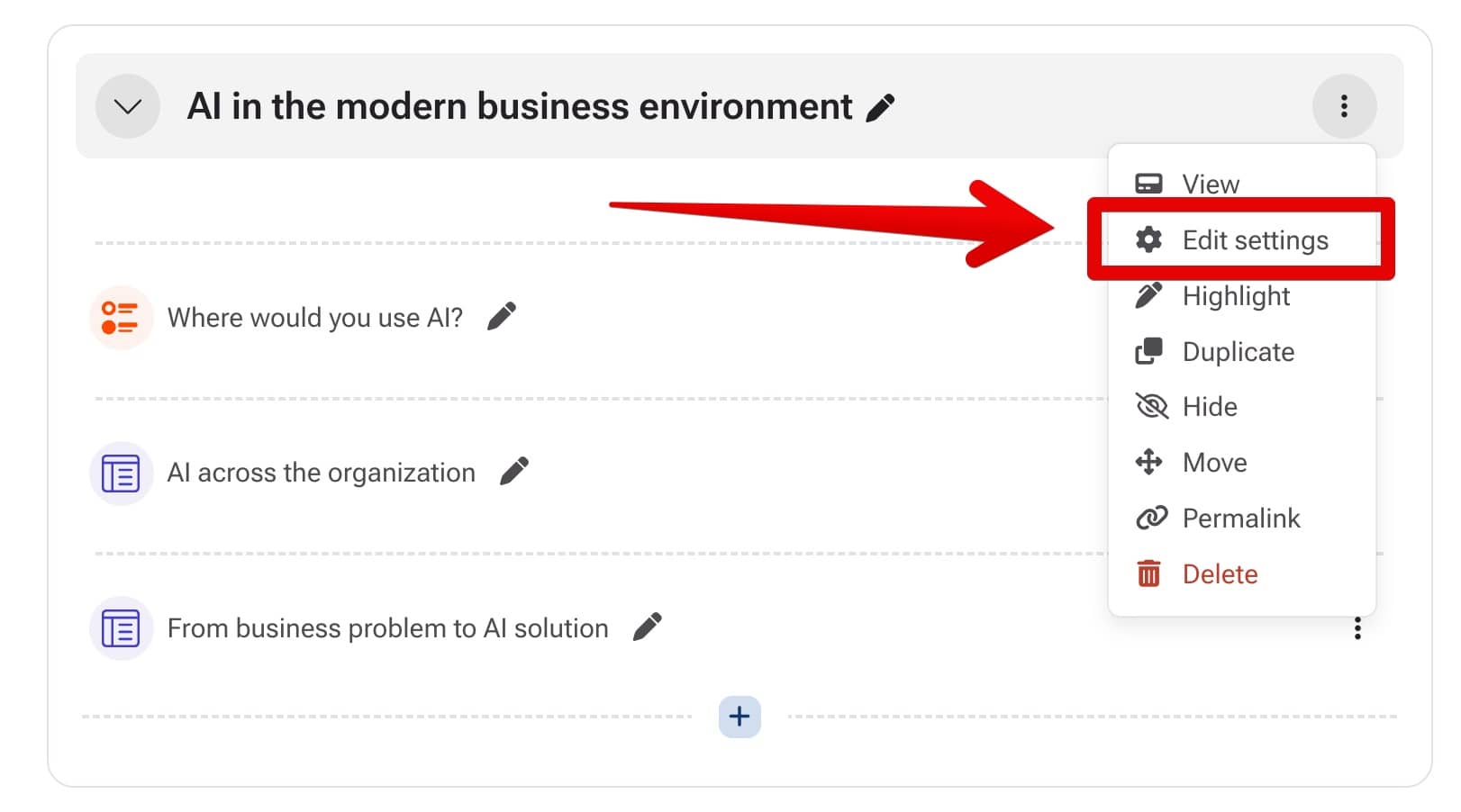
To set an image for a course section:
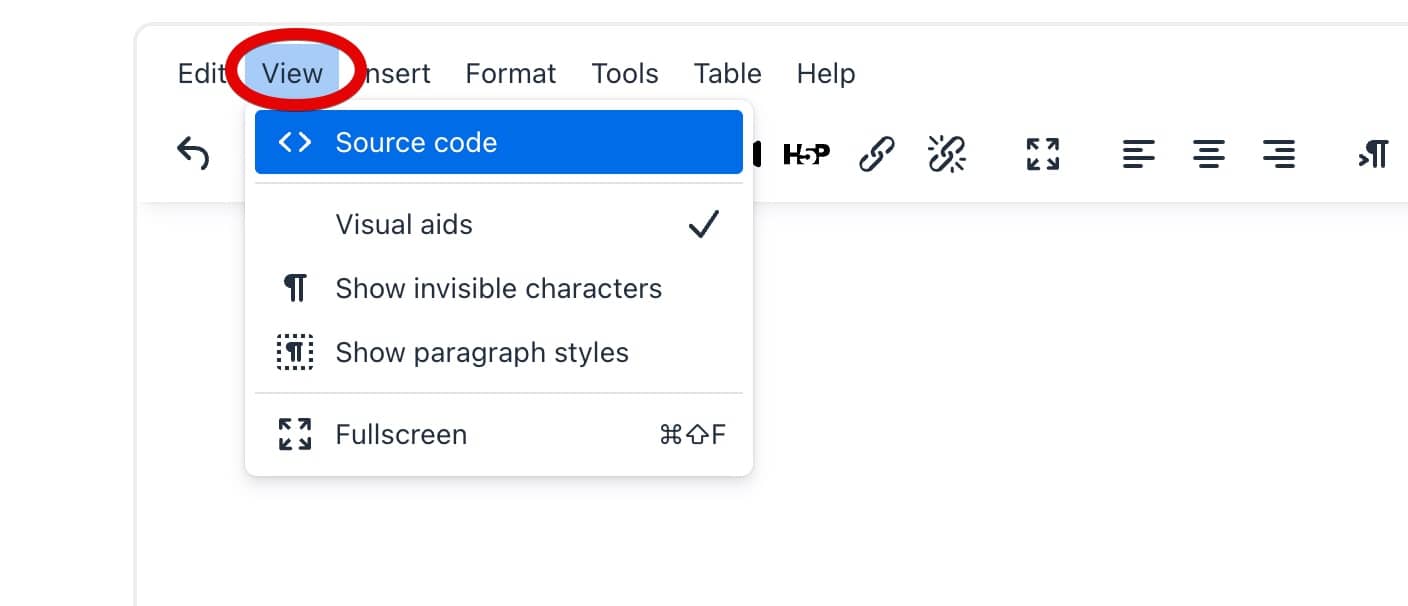
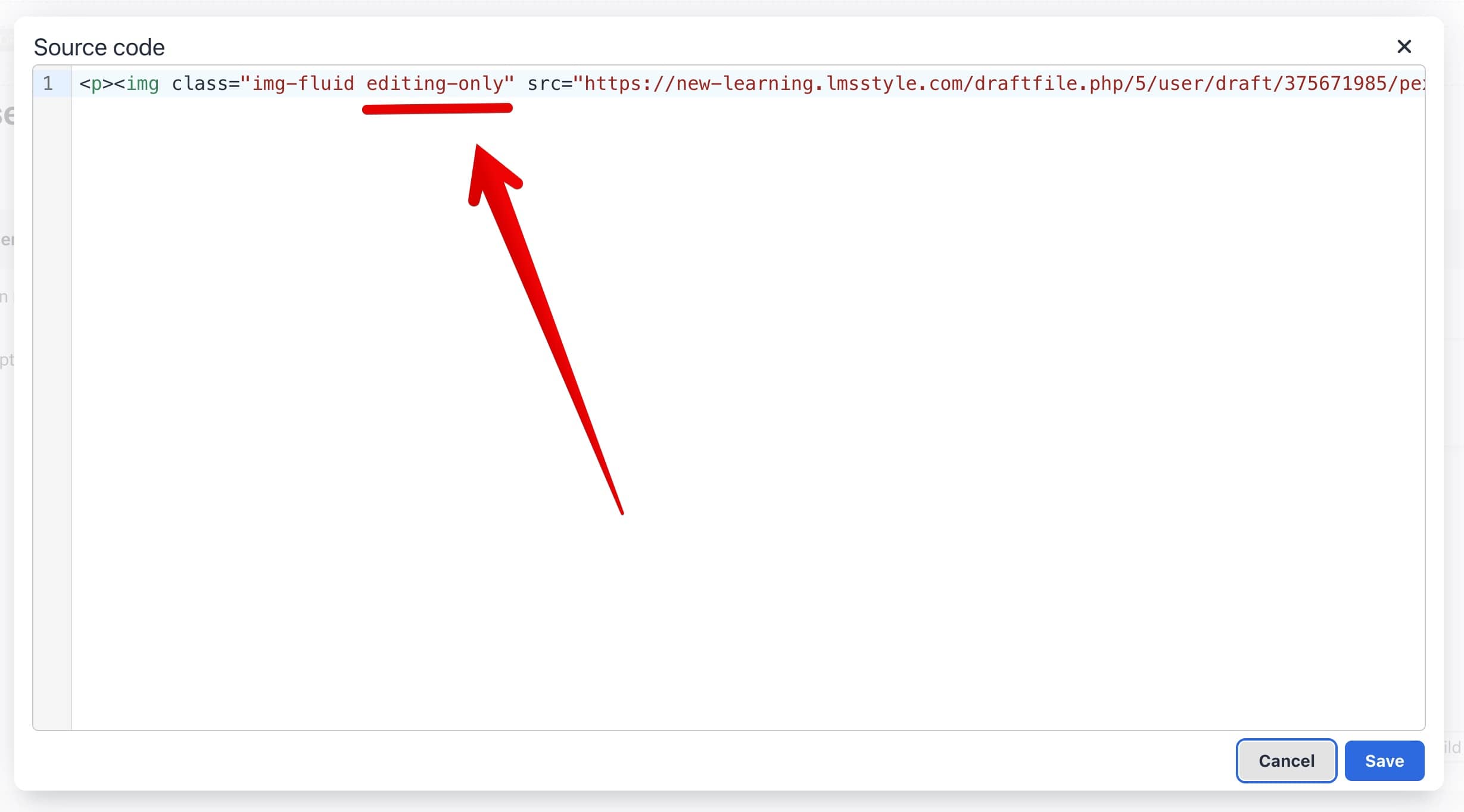
To display the image only while editing the course and hide it from students, open the HTML source code editor and add the "editing-only" CSS class to the image element.
Section icons
The section icon is automatically taken from the first activity or resource in the section, such as a Page or Assignment.
Section colors
By default, colors are defined in the theme code for individual activity and resource types. The section color is based on the type of the first activity or resource in the section.
If you want to customize the colors assigned to individual activity and resource types, you can do so in the theme settings.
- Go to: Theme settings > Style > Colors.
- Enter your custom colors in the "Activity colors" field.
Each line must contain an activity or resource type and a color value, separated by a pipe character (|). For example:
forum|#4535C1
book|#219C90